Mobile Scanner App - Scan PDF
Glority Global Group Ltd.Productivity
4.71.98K Reviews
- Version
- 2.15.0
- Installs
- 10.00M
- Age Rating
- Everyone
Screenshots
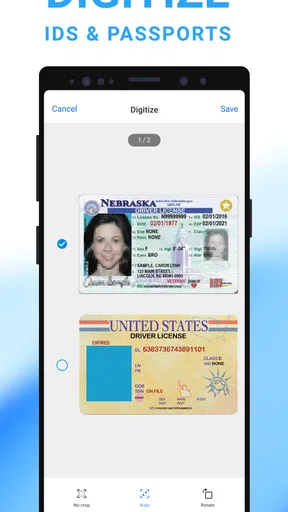
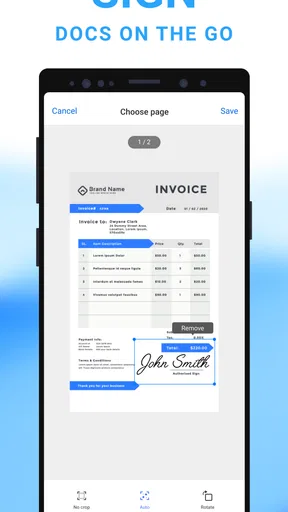
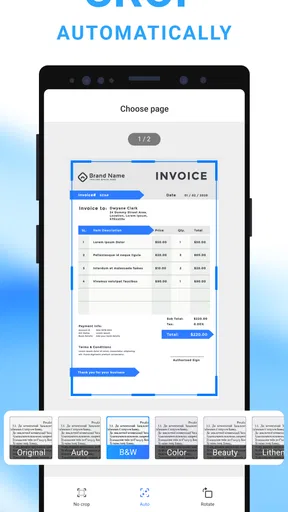
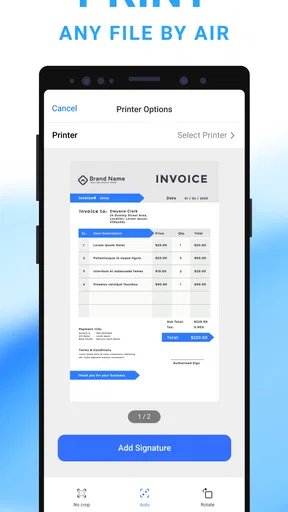
Our Review of Mobile Scanner App - Scan PDF
 Analysis by Appyee
I judge a phone scanner by a few practical questions: can I capture a page quickly, correct a slightly awkward photo, and get a file I can actually send or keep? Mobile Scanner App - Scan PDF is built for that everyday gap between having a document in hand and having a usable digital copy. It is a free productivity app from Glority Global Group Ltd., rated for Everyone, and its core appeal is straightforward: use the phone camera rather than hunt for a separate scanner.
Choosing a scanner for everyday paperwork
There are several ways to digitize a page, and the best choice depends on what happens after the photo. A phone’s built-in camera is fine for a single image you only need to glance at, while a dedicated office scanner is often better for large batches or consistently polished archival copies. A mobile scanning app sits between those options: it is convenient when the paper is already with you, and it gives you tools to shape the capture into a document rather than leaving you with an ordinary photo.
This app’s focus on document capture and PDF output makes sense for receipts, forms, notes, and pages that need to travel by email. I would decide whether it suits me by considering how often I scan, how exact the result must be, and whether I need a quick file more than a full desktop document workflow. For occasional paperwork, carrying a scanner in my pocket is a real advantage; for a large archive, I would still prefer equipment and software designed for bulk handling.
First impressions and a quick decision
When I first downloaded the Mobile Scanner App - Scan PDF, I was immediately struck by its clean and straightforward interface. It’s designed for ease of use, which is great because nobody wants to fumble around with complex settings when they just need to get a quick scan done. The app launched smoothly, and within moments, I was ready to start scanning.
That low-friction start is useful when a document appears at an inconvenient moment: a school form to return, a receipt needed for reimbursement, or a signed page someone is waiting to receive. I can see this being especially handy for students, freelancers, and anyone who handles small amounts of paperwork away from a desk. If scanning is only an occasional need, an app like this can be more practical than buying or setting up dedicated hardware.
Where the capture tools earn their place
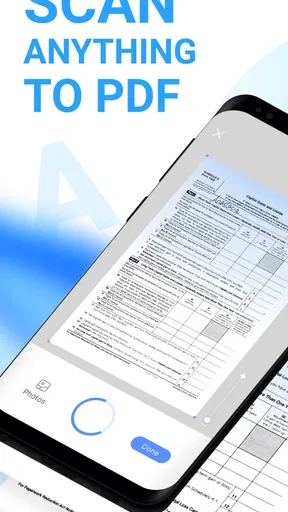
One of the standout features of this app is its excellent scan quality. I tested it under different lighting conditions and was impressed by how well it captured details, with crisp text and vibrant images. The app uses your phone's camera to scan documents, and thanks to the automatic edge detection, it crops the images perfectly, saving you the hassle of manual adjustments.
Automatic cropping is a convenience, not a substitute for a careful setup. For a cleaner result, I place the page on a surface that contrasts with its edges, keep the phone parallel to the paper, and avoid casting my own shadow across the text. Those small habits matter most for thin receipts, pale print, or pages with curled corners, where an edge detector has less obvious boundaries to work with. If the crop looks wrong, checking it before moving on is quicker than discovering the problem after sending the file.
The app doesn’t just stop at scanning. You can also convert your scanned documents into PDFs or images, making it super versatile. Whether you're scanning a receipt, a contract, or a page from a book, this app has got you covered.
For a multi-page handout or a short contract, I would capture pages in order and review the sequence before sharing. That simple final check helps prevent a tidy-looking PDF from becoming confusing because a page was missed or placed out of order. The image option is useful when someone needs a quick visual copy, while PDF is the more natural choice for paperwork that should read as one document. Neither format can rescue a blurred capture, so I treat review and retaking as part of scanning rather than an optional extra.
Editing for legibility, then sharing with care
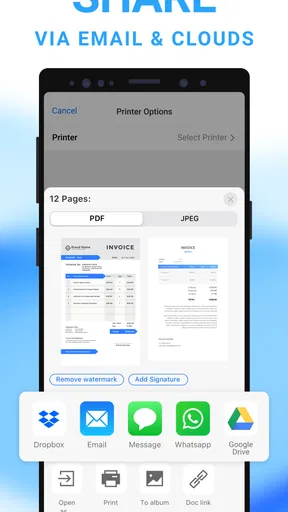
After you’ve scanned a document, the app offers a range of editing tools. You can adjust the brightness, contrast, and even apply filters to enhance the readability of the text. It’s almost like having a mini photo editor tailored for documents. Once you’re satisfied with your scans, sharing them is a breeze. You can send them via email, upload them to cloud services, or even print them directly if your phone is synced with a printer.
I would use those adjustments to improve a usable capture, not to disguise a poor one. A modest brightness or contrast change can help a faint page stand out, but pushing edits too far may make fine print harder to read or alter the appearance of a color image. For records that need to look faithful, I would keep the original capture available until I have checked the edited version. Before sending anything sensitive, I would also confirm the recipient and the attachment; ease of sharing is helpful, but it makes that last human check worth doing.
A realistic use case is finishing a form at the kitchen table just before leaving for an appointment. I can capture each page, check the crop and order, make a small readability adjustment if needed, and send the PDF instead of carrying loose paper around. For a receipt, I might choose an image when the recipient only needs to see the itemized proof. The useful distinction is not simply “scan or don’t scan”; it is choosing a format and level of editing that match the purpose.
Performance, scale, and practical limits
Let’s talk about performance. The app runs smoothly without any noticeable lag, even when processing multiple pages. It’s reliable too—I didn’t encounter any crashes or bugs during my testing, which is always a plus. It's compatible with both Android and iOS, making it accessible to a wide range of users.
For a handful of pages, a phone workflow is convenient. The trade-off becomes clearer when the job grows into a thick stack: framing every page, checking each crop, and confirming the order takes attention, even if processing itself feels smooth. In that situation, a document feeder or desktop scanning workflow may be a better fit. I would also favor a physical scanner when consistent results across many pages matter more than being able to scan from wherever I happen to be.
Compared with using the camera app alone, a dedicated scanner app is more appealing when I want a document-shaped crop, quick visual corrections, and an output intended for sharing as a PDF. The ordinary camera remains a sensible alternative for an informal snapshot or when I do not need document-oriented editing. The choice is about the job: this app is most compelling when paper needs to become organized, portable paperwork rather than just a picture in a camera roll.
Privacy, access, and keeping expectations realistic
In today’s digital age, security is paramount, especially when dealing with sensitive documents. The app reassures users with its data protection policies, ensuring that your documents are safe and not stored on any third-party servers. This attention to privacy gives you peace of mind, knowing your information won’t be compromised.
Even with that reassurance, I treat scans of identity, financial, or medical paperwork thoughtfully. I avoid sharing a file more widely than necessary and consider where I choose to store it after sending. Convenience does not remove the need to handle private documents carefully, especially when a scan is easy to duplicate or forward. For highly regulated office processes or a formal records archive, I would follow the organization’s approved tools and retention rules rather than assume a mobile app is the whole solution.
The app is designed with a user-friendly approach, making it accessible for everyone, whether you're tech-savvy or not. The straightforward instructions guide you through the process, and the app supports multiple languages, widening its appeal even further.
It has a 4.6 average from around 101,000 ratings and over 10 million installs, which suggests that many people have found a mobile scanner useful. I would still base my choice on my own routine rather than popularity: someone who scans a form now and then has different needs from an office worker digitizing folders every week. The app is free to download, with in-app purchases ranging from $0.99 to $39.99 per item, so I would check the current purchase screen before relying on any paid option or deciding what fits my budget.
When another option makes more sense
For a one-off, casual photo of a page, the built-in camera may be enough and avoids adding another app to manage. For a long document or a large batch, a flatbed or feeder scanner can reduce repeated handling and make the process easier to control. And if the main requirement is extracting searchable text or fitting scans into a broader office system, I would compare tools specifically around those needs before committing to a mobile workflow. The strength here is convenient capture and simple preparation, not replacing every document-management tool.
Before switching from another scanner app, I would think about where my existing files live and how I name them. A scanner can make a clean PDF, but a useful archive also needs consistent filenames and a place where I can find the file later. For example, labeling a receipt with the vendor and purpose as soon as I save it is more helpful than accumulating many files with generic names. That small habit can matter more over time than another editing filter.
Final thoughts on who should use it
Overall, the Mobile Scanner App - Scan PDF is a handy tool that packs a punch in terms of functionality and ease of use. It turns your smartphone into a powerful scanner, allowing you to digitize your documents on the go. Whether you're a student, a professional, or just someone who likes to keep their paperwork organized, this app is worth checking out. It's a reliable companion that simplifies the process of scanning and sharing documents, making your life a whole lot easier.
I would recommend it to someone who needs an approachable way to turn occasional paper into a shareable file, especially when speed and portability matter. I would skip it as my primary solution if I regularly process large volumes, need a carefully controlled archival workflow, or depend on specialized text extraction and document-management features. The current version is 2.13.1, and it requires Android 9 or later on Android devices; iOS users should check compatibility in their app store before installing.
Ready to give it a spin? You can download it directly from the app store for Android or iOS. Happy scanning!
Verdict
Strengths of Mobile Scanner App - Scan PDF
- Fast scanning with high-quality output.
- User-friendly interface for easy navigation.
- Supports multiple file formats, including PDF.
- Allows direct sharing to cloud services.
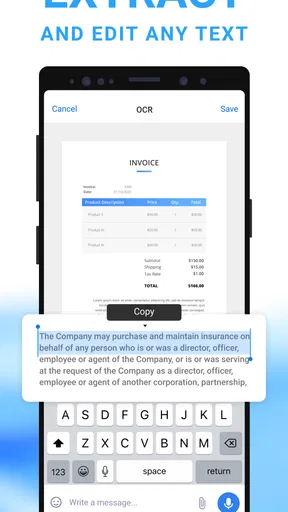
- OCR feature for text recognition.
Limitations of Mobile Scanner App - Scan PDF
- Limited editing tools for scanned documents.
- Requires paid subscription for premium features.
- Ads can be intrusive in the free version.
- Limited support for batch scanning.
- Occasional issues with image alignment.
Other Releases by Glority Global Group Ltd.
View All
PictureThis - Plant Identifier
Education4.6

Plant Parent: Plant Care Guide
Lifestyle4.5

GrowIt: Vegetable Garden Care
Lifestyle4.3
Similar Picks in This Category
View All
Google Calendar
Google LLC4.6

Google Drive
Google LLC4.3

Google Assistant
Google LLC3.9

Microsoft OneDrive
Microsoft Corporation4.6

Samsung Calendar
Samsung Electronics Co., Ltd.4.1

Microsoft OneNote: Save Notes
Microsoft Corporation4.6
Frequently Asked Questions
What features does the Mobile Scanner App offer?
The Mobile Scanner App provides a range of features including high-resolution document scanning, batch scanning for multiple pages, OCR (Optical Character Recognition) to convert images to editable text, and secure cloud storage options. Additionally, it supports various file formats like PDF and JPEG for easy sharing and printing.
Is the Mobile Scanner App available for both Android and iOS devices?
Yes, the Mobile Scanner App is available for download on both Android and iOS platforms. You can find it on the Google Play Store for Android devices and the Apple App Store for iOS devices, ensuring compatibility with a wide range of smartphones and tablets.
Are there any in-app purchases or subscription fees?
The Mobile Scanner App offers a free version with basic features, but there are in-app purchases available for advanced functionalities. Users can opt for a subscription model to access premium features such as unlimited scans, enhanced OCR, and additional cloud storage space, providing flexibility based on user needs.
How secure is my data when using the Mobile Scanner App?
The Mobile Scanner App prioritizes user privacy and data security. It uses encryption protocols to protect your scanned documents and offers the option to store them securely in the cloud. Users can also enable password protection for sensitive files, ensuring that their data remains safe from unauthorized access.
Can the Mobile Scanner App handle different document types?
Yes, the Mobile Scanner App is designed to handle various document types, including receipts, contracts, business cards, and handwritten notes. Its intelligent processing capabilities adjust settings automatically to optimize the quality of each scan, making it versatile for both personal and professional use.
